
Workspace
Your club membership
Your club membership. The workspace team manages who has access.
On this screen
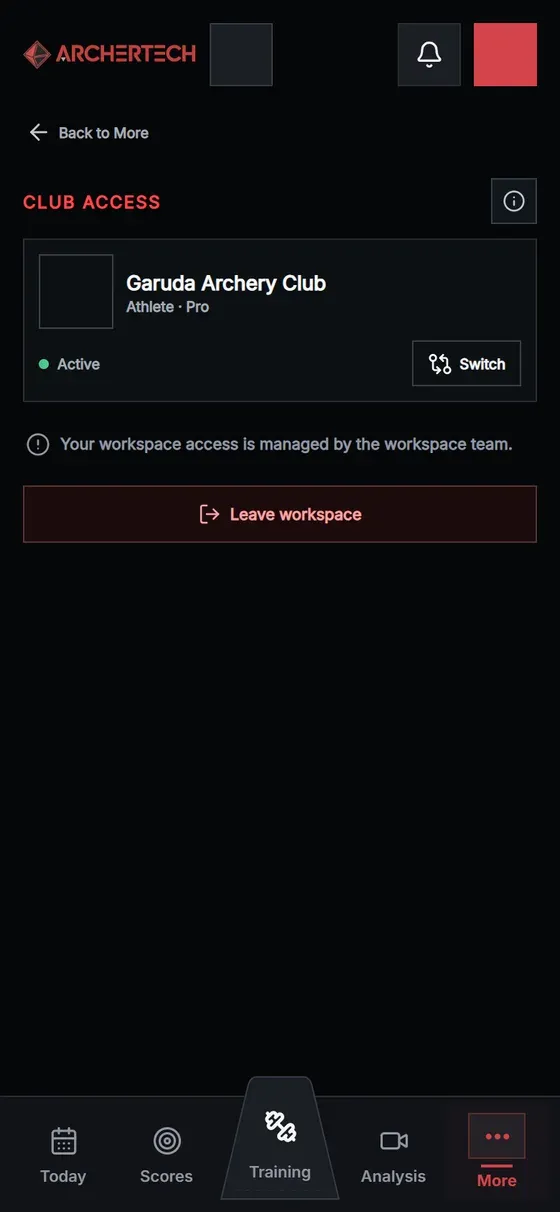
- Club accessThe page title, with a Back to More link above it.
- Your clubClub logo and name, your role and plan, and a Switch button.
- Switching clubsSwitch lists your clubs; Find workspace joins or creates another.
- Access noteA note says the workspace team manages your access.
- Leave workspaceLeave workspace ends your membership. It is hidden for the workspace owner.
Your club
- Switch moves between clubs if you belong to more than one; Find workspace looks for another.
- Leave workspace ends your membership.
Members, athlete groups and club settings.
On this screen
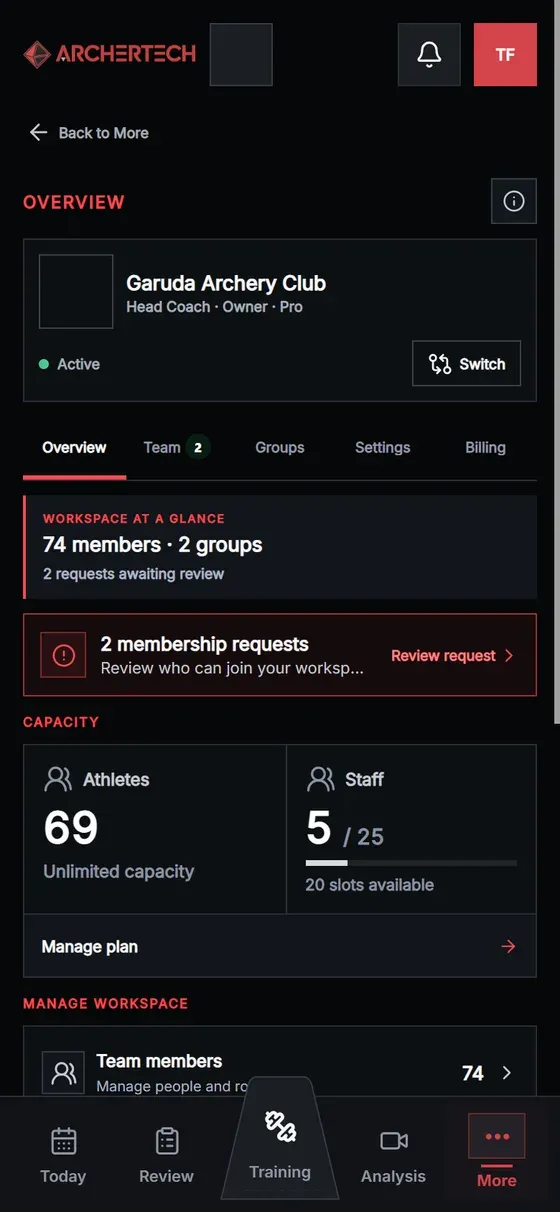
- Workspace tabsOverview, Team, Groups, Settings and Billing, depending on your role.
- CapacityAthlete and staff counts against the plan limits, with Manage plan.
- Manage workspaceShortcuts to Team members and Athlete groups, plus Invite member and Workspace settings.
- Billing tabCurrent plan, usage and Change workspace plan, with payment history and billing help below.
- Capacity add-onsBuy +10 athletes, +5 staff, +25 GB or +20 videos, for one month or until the plan ends.
Your club access
- Coaches see Club access; the head coach and managers look after members.
- Switch moves between clubs; Leave workspace ends your membership.
Members, athlete groups and club settings.
On this screen
- Workspace tabsOverview, Team, Groups, Settings and Billing, depending on your role.
- CapacityAthlete and staff counts against the plan limits, with Manage plan.
- Manage workspaceShortcuts to Team members and Athlete groups, plus Invite member and Workspace settings.
- Billing tabCurrent plan, usage and Change workspace plan, with payment history and billing help below.
- Capacity add-onsBuy +10 athletes, +5 staff, +25 GB or +20 videos, for one month or until the plan ends.
Invite people
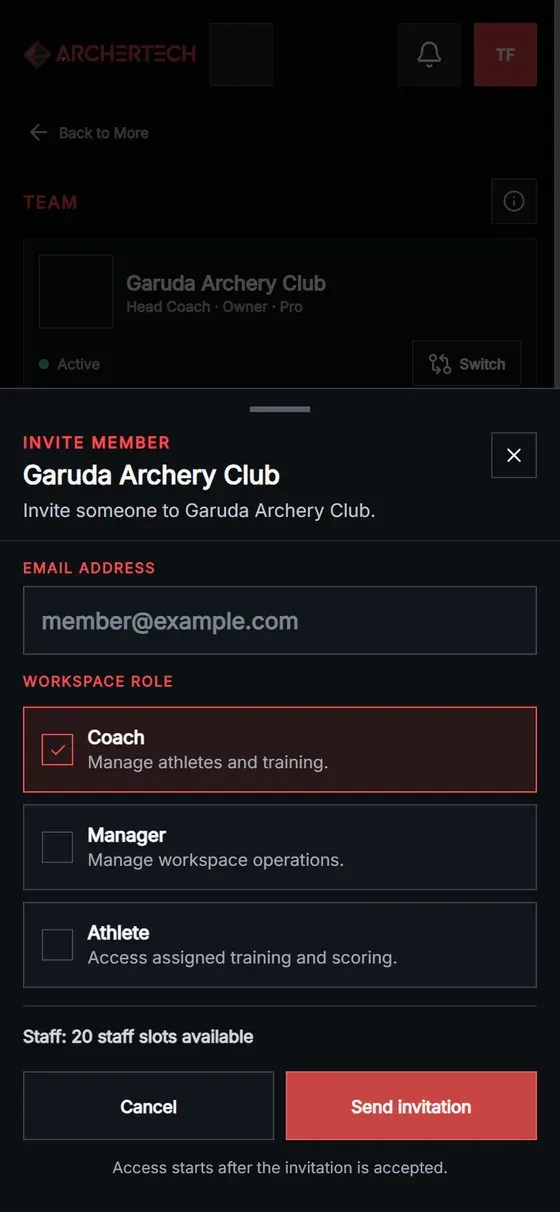
- Open Team and tap Invite.
- Enter the email address and choose the role: coach, manager or athlete.
- Send it, and follow it under Pending invitations. Invitations expire after 7 days.
Handle join requests
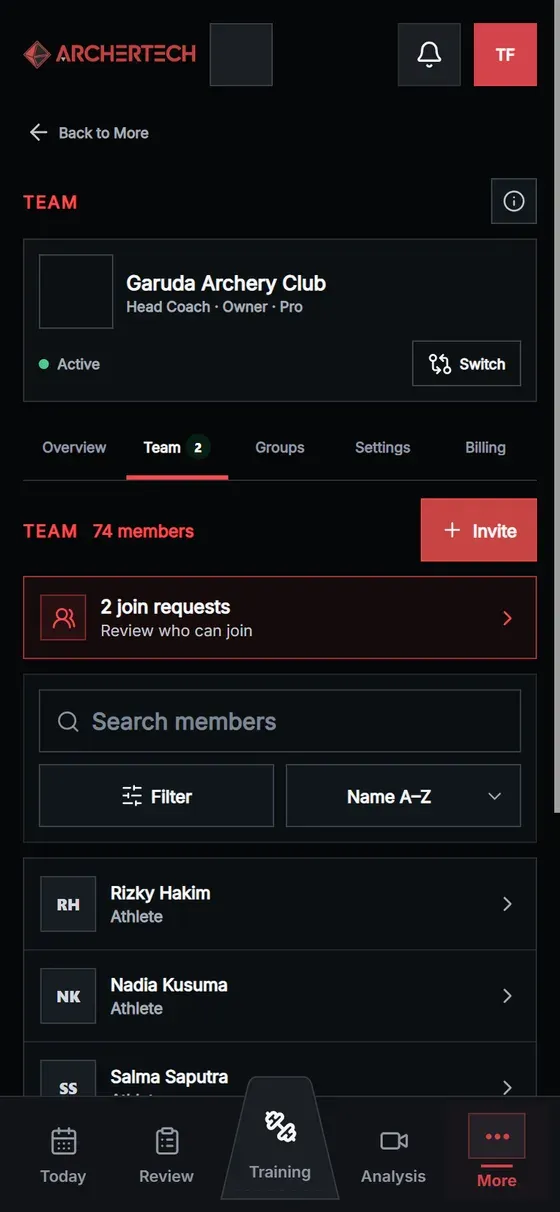
- In Team, tap the Review who can join row. It appears when someone is waiting.
- Approve or decline staff requests.
- For an athlete, tap Review match, then link them to an existing athlete record or create a new one.
Manage members
- Tap a member for details; link an athlete member to their athlete record.
- Remove from workspace works for anyone except yourself and the owner.
- Only the workspace owner changes a member’s role.
Organise groups
- Open Groups and tap New group.
- Give it a name, purpose and colour, then tap Add athletes.
- Reorder changes the order; Delete group keeps the athletes and their records.
Club settings
- Settings: logo, club name, colours, season and discovery (public or private).
- Workspace owner only: daily check-in reminders and Archive workspace.
Plan and billing
- The Billing tab (workspace owner and manager) shows the current plan, capacity and payments.
- Change workspace plan: choose monthly or yearly and a plan, review it and pay with Midtrans. The plan changes once Midtrans confirms the payment.
- Capacity add-ons are arranged by ArcherTech support.
Members, athlete groups and club settings.
On this screen
- Workspace tabsOverview, Team, Groups, Settings and Billing, depending on your role.
- CapacityAthlete and staff counts against the plan limits, with Manage plan.
- Manage workspaceShortcuts to Team members and Athlete groups, plus Invite member and Workspace settings.
- Billing tabCurrent plan, usage and Change workspace plan, with payment history and billing help below.
- Capacity add-onsBuy +10 athletes, +5 staff, +25 GB or +20 videos, for one month or until the plan ends.
Handle join requests
- In Team, tap the Review who can join row. It appears when someone is waiting.
- Approve or decline staff requests.
- For an athlete, tap Review match, then link them to an existing athlete record or create a new one.
Manage members
- Tap a member for details; link an athlete member to their athlete record.
- Remove from workspace works for anyone except yourself and the owner.
- Only the workspace owner changes a member’s role.
Organise groups
- Open Groups and tap New group.
- Give it a name, purpose and colour, then tap Add athletes.
- Reorder changes the order; Delete group keeps the athletes and their records.
Plan and billing
- The Billing tab (workspace owner and manager) shows the current plan, capacity and payments.
- Change workspace plan: choose monthly or yearly and a plan, review it and pay with Midtrans. The plan changes once Midtrans confirms the payment.
- Capacity add-ons are arranged by ArcherTech support.
What a manager can’t do here
- Managers can’t invite people or change roles, and have no Settings tab.