
Selection Tables
Selection boards, rankings and decisions
Selection boards for an event: categories, eligible candidates, their best scores and your decisions.
On this screen
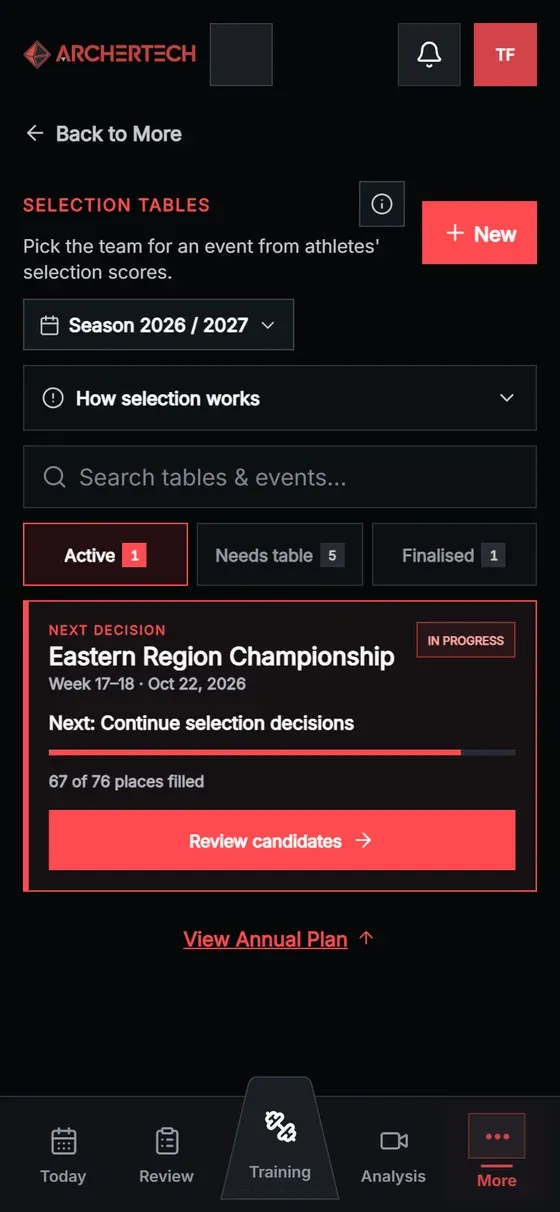
- Selection TablesThe header offers New to start a table, with a season picker.
- Active, Needs table, FinalisedSwitch between running boards, planned events without a table, and finalised ones.
- Planned eventsAnnual Plan events and custom tables; tap a row to open or create its board.
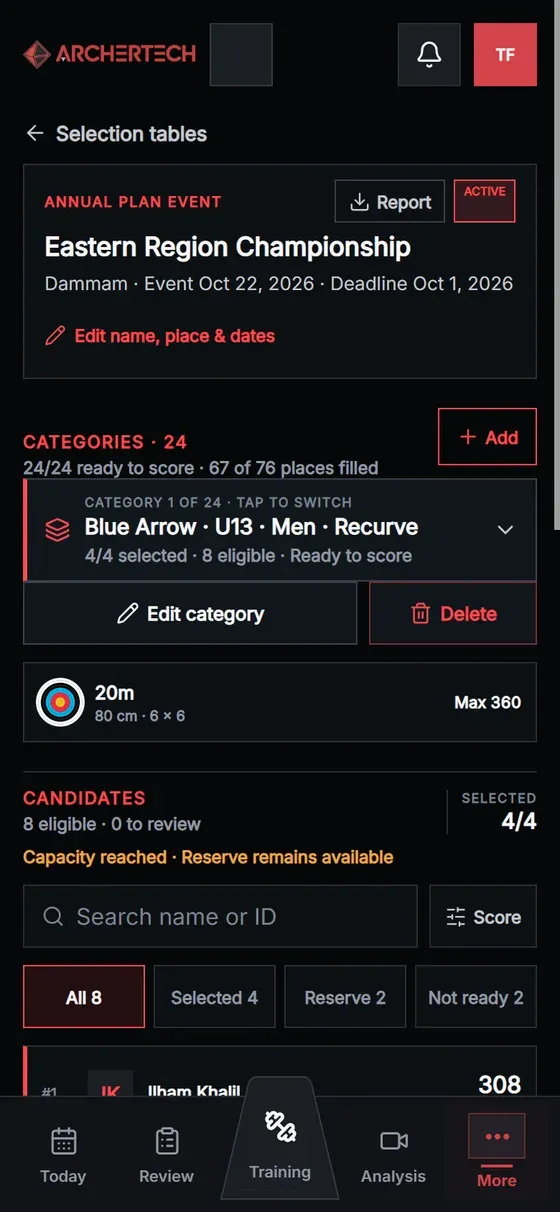
- Board detailsInside a board, name, location, event date and deadline sit above the categories.
- CandidatesEligible athletes with their best score; mark each selected, reserve or not ready.
Create a board
- Tap New and choose an Annual Plan event or a custom table.
- Set the name, location, event date and deadline. Changes save automatically.
- Add a category: set eligibility (squad, age category, bow type, gender, athlete limit), then the scoring round (single or multi-distance), and tap Create category.
Collect scores
- Candidates are the roster athletes who match the category; you don’t add them by hand.
- Athletes submit through Scores → Selection, or tap a candidate and Score for this selection.
- A candidate’s best complete attempt counts; on multi-distance categories, every distance must be shot.
Decide and finalise
- Tap selected, reserve or not ready for each candidate.
- When every category is complete, tap Review & finalise table, then Finalise table.
- A finalised board is locked; use Reopen table from its menu to change it.
Export results
- Tap Report and choose all categories or this one.
- Pick PDF or Excel.
- Reports work in the web app.
Selection boards for an event: categories, eligible candidates, their best scores and your decisions.
On this screen
- Selection TablesThe header offers New to start a table, with a season picker.
- Active, Needs table, FinalisedSwitch between running boards, planned events without a table, and finalised ones.
- Planned eventsAnnual Plan events and custom tables; tap a row to open or create its board.
- Board detailsInside a board, name, location, event date and deadline sit above the categories.
- CandidatesEligible athletes with their best score; mark each selected, reserve or not ready.
Create a board
- Tap New and choose an Annual Plan event or a custom table.
- Set the name, location, event date and deadline. Changes save automatically.
- Add a category: set eligibility (squad, age category, bow type, gender, athlete limit), then the scoring round (single or multi-distance), and tap Create category.
Collect scores
- Candidates are the roster athletes who match the category; you don’t add them by hand.
- Athletes submit through Scores → Selection, or tap a candidate and Score for this selection.
- A candidate’s best complete attempt counts; on multi-distance categories, every distance must be shot.
Decide and finalise
- Tap selected, reserve or not ready for each candidate.
- When every category is complete, tap Review & finalise table, then Finalise table.
- A finalised board is locked; use Reopen table from its menu to change it.
Export results
- Tap Report and choose all categories or this one.
- Pick PDF or Excel.
- Reports work in the web app.
Selection boards for an event: categories, eligible candidates, their best scores and your decisions.
On this screen
- Selection TablesThe header offers New to start a table, with a season picker.
- Active, Needs table, FinalisedSwitch between running boards, planned events without a table, and finalised ones.
- Planned eventsAnnual Plan events and custom tables; tap a row to open or create its board.
- Board detailsInside a board, name, location, event date and deadline sit above the categories.
- CandidatesEligible athletes with their best score; mark each selected, reserve or not ready.
Export results
- Tap Report and choose all categories or this one.
- Pick PDF or Excel.
- Reports work in the web app.
What a manager can’t do here
- Managers can view boards, rankings and decisions and export reports, but can’t create, edit or decide.