
Scores
Record rounds arrow by arrow and follow your trend
Record every round arrow by arrow, then look back at totals and trends.
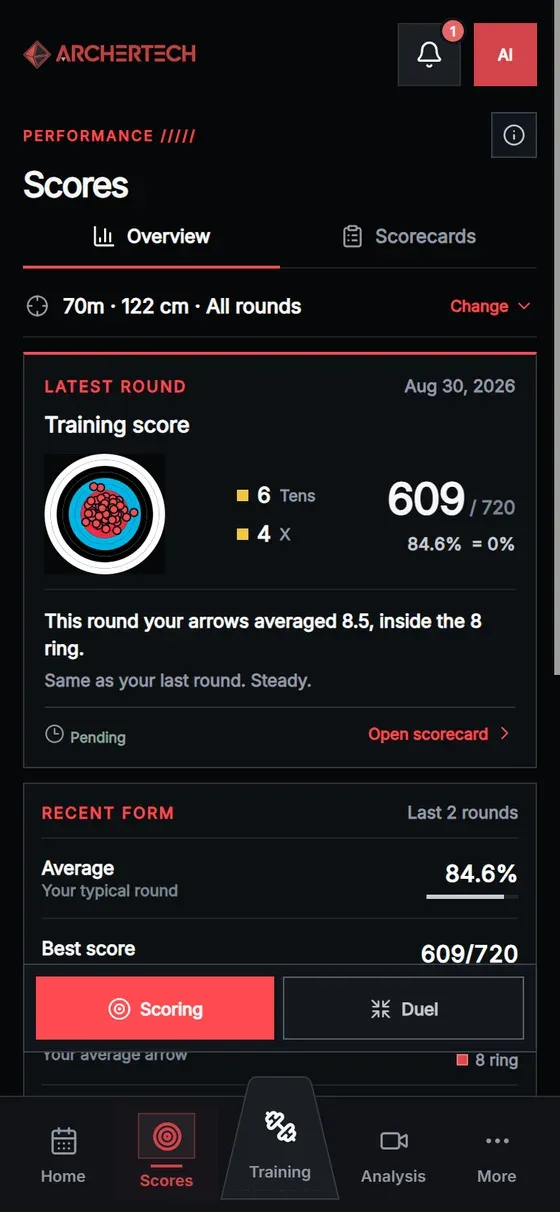
On this screen
- New scoreStarts a scorecard, or shows Resume when you have an unfinished round.
- Overview and ScorecardsTwo tabs switch between your summary and the full list of your rounds.
- Latest roundShows your last total, tens and Xs, and how far you are from your goal.
- Recent form and trendYour average and best score, then a trend chart of your rounds.
- Season goalThe season target your coach set and how many points are left.
Start a scorecard
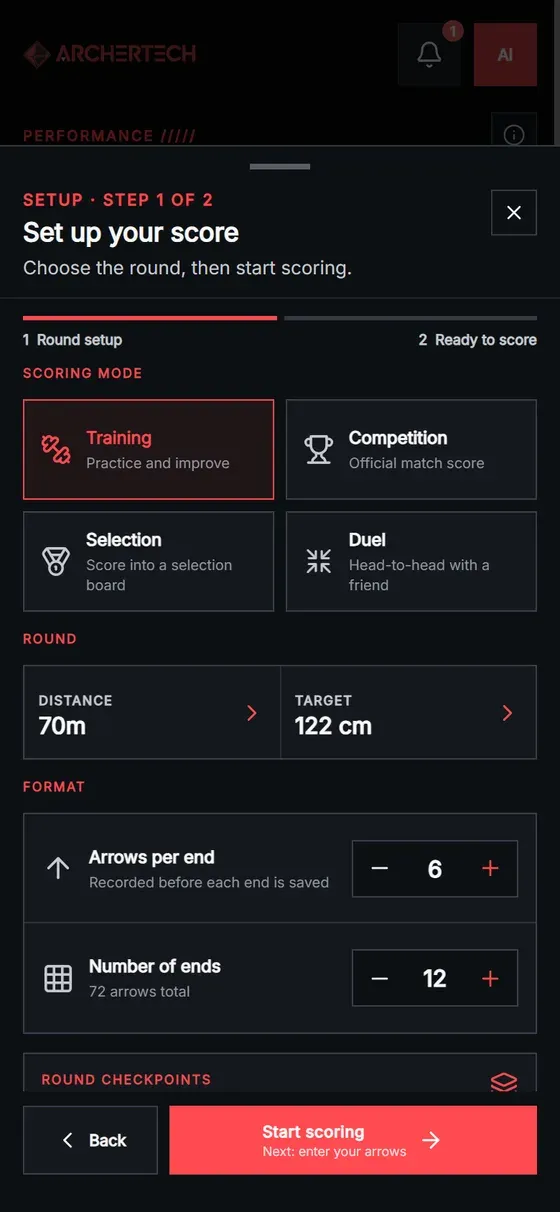
- Tap New score, or Resume to continue an unfinished round.
- Choose the mode. Competition asks for the event name and date.
- Tap DISTANCE and TARGET, then set the arrows per end and the number of ends.
- Tap Start scoring.
Enter your arrows
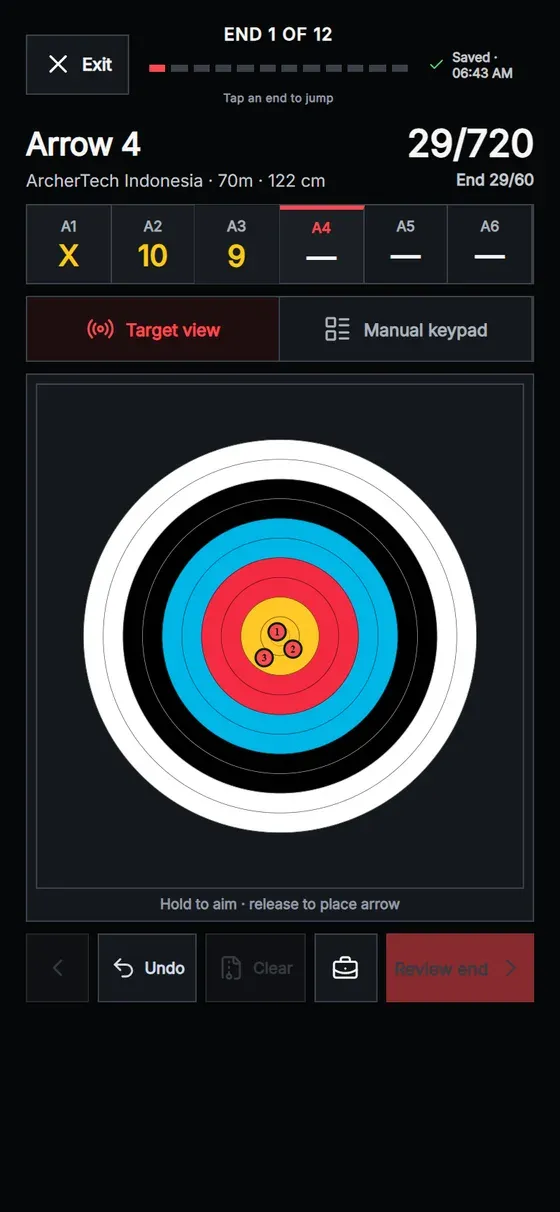
- Use Target view (hold to aim, release to place) or the Manual keypad.
- Undo and Clear fix mistakes; tap any arrow to correct it.
- When an end is full, check it and tap Confirm & next end.
- After the last end, tap Review scorecard, then Save scorecard.
- Every arrow must be entered before a round can be saved.
Look back
- Overview shows your latest round and your performance trend.
- Scorecards lists your rounds by month; search, or filter by distance, target or status.
- Open a scorecard for its ends and statistics.
Edit or delete a scorecard
- Open the scorecard and tap ⋮.
- Choose Edit scorecard (needs a connection) or Delete scorecard.
- Tap Tap again to delete to confirm. A deleted scorecard can’t be restored.
Record every round arrow by arrow, then look back at totals and trends.
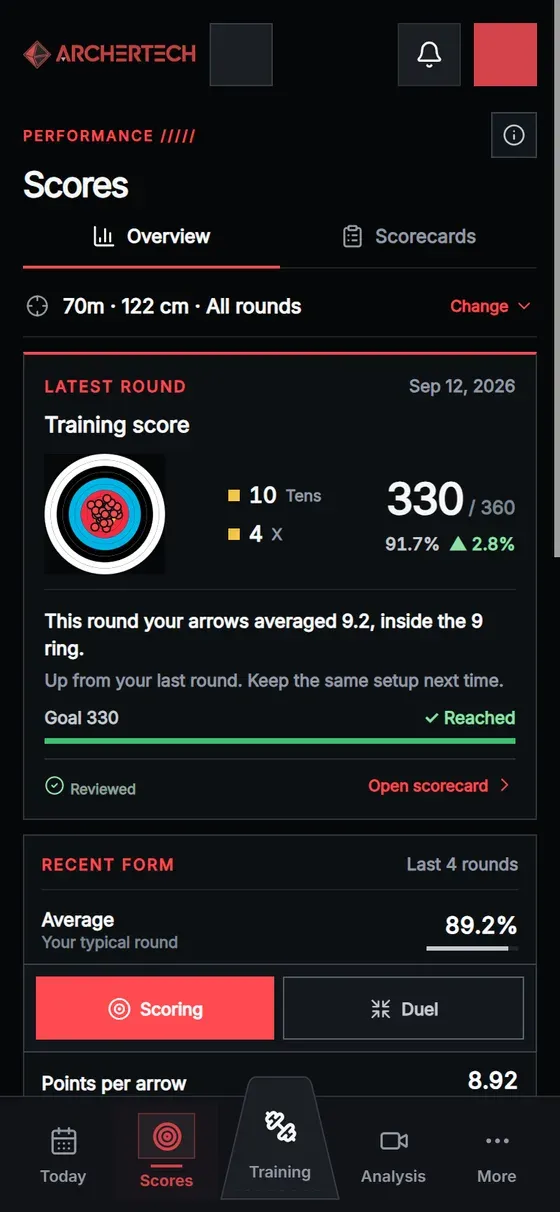
On this screen
- New scoreStarts a scorecard, or shows Resume when you have an unfinished round.
- Overview and ScorecardsTwo tabs switch between your summary and the full list of your rounds.
- Latest roundShows your last total, tens and Xs, and how far you are from your goal.
- Recent form and trendYour average and best score, then a trend chart of your rounds.
- Season goalThe season target your coach set and how many points are left.
Start a scorecard
- Tap New score, or Resume to continue an unfinished round.
- Choose the mode. Competition asks for the event name and date.
- Tap DISTANCE and TARGET, then set the arrows per end and the number of ends.
- Tap Start scoring.
Enter your arrows
- Use Target view (hold to aim, release to place) or the Manual keypad.
- Undo and Clear fix mistakes; tap any arrow to correct it.
- When an end is full, check it and tap Confirm & next end.
- After the last end, tap Review scorecard, then Save scorecard.
- Every arrow must be entered before a round can be saved.
Score for a selection table
- Choose Selection and pick the table under Which table?.
- Distance, target, arrows and ends are locked to the category.
- On a multi-distance table, the next distance follows after each submission.
Look back
- Overview shows your latest round and your performance trend.
- Scorecards lists your rounds by month; search, or filter by distance, target or status.
- Open a scorecard for its ends and statistics.
Coach review and sharing
- The Coach tab shows your coach’s review: waiting, verified or a follow-up.
- Publish score shares a round in Club Performance; Make private hides it again.
- Your coach sets the season target shown under Season goal.
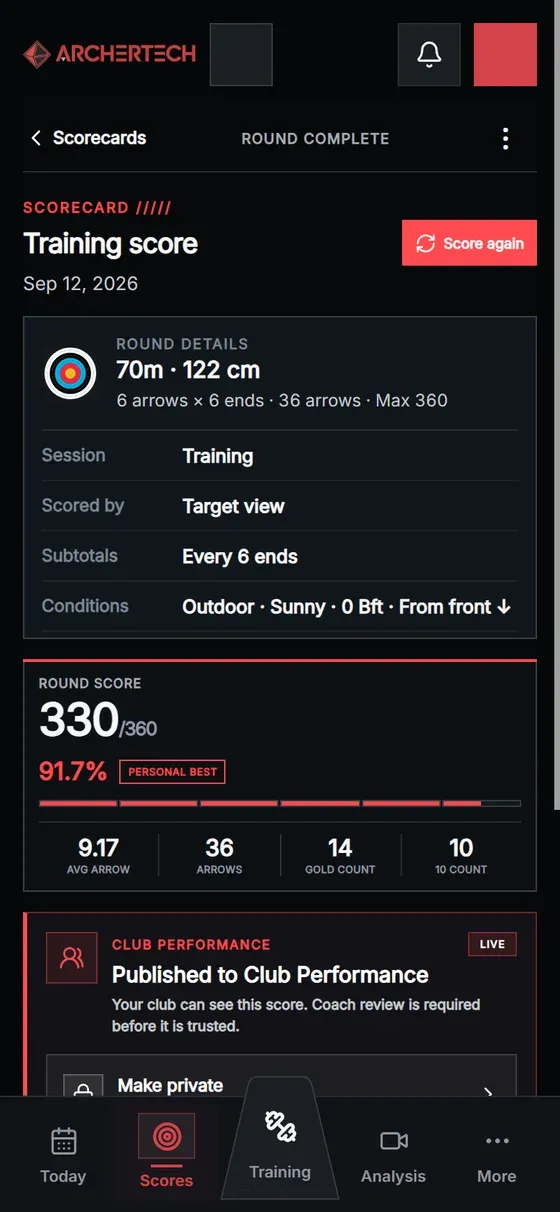
Edit or delete a scorecard
- Open the scorecard and tap ⋮.
- Choose Edit scorecard (needs a connection) or Delete scorecard.
- Tap Tap again to delete to confirm. A deleted scorecard can’t be restored.
Your athletes’ scorecards: rounds, coach verification and trends.
On this screen
- Choose athletePicks whose scorecards you see and score; their name and code show here.
- Overview and ScorecardsTwo tabs switch between the athlete’s summary and their list of rounds.
- Recent form and trendThe athlete’s average and best score, then a trend chart of their rounds.
- Season goalSets the athlete’s season target and shows how many points remain.
- Scoring and DuelCoaches get a bottom bar to start Scoring or open Duel.
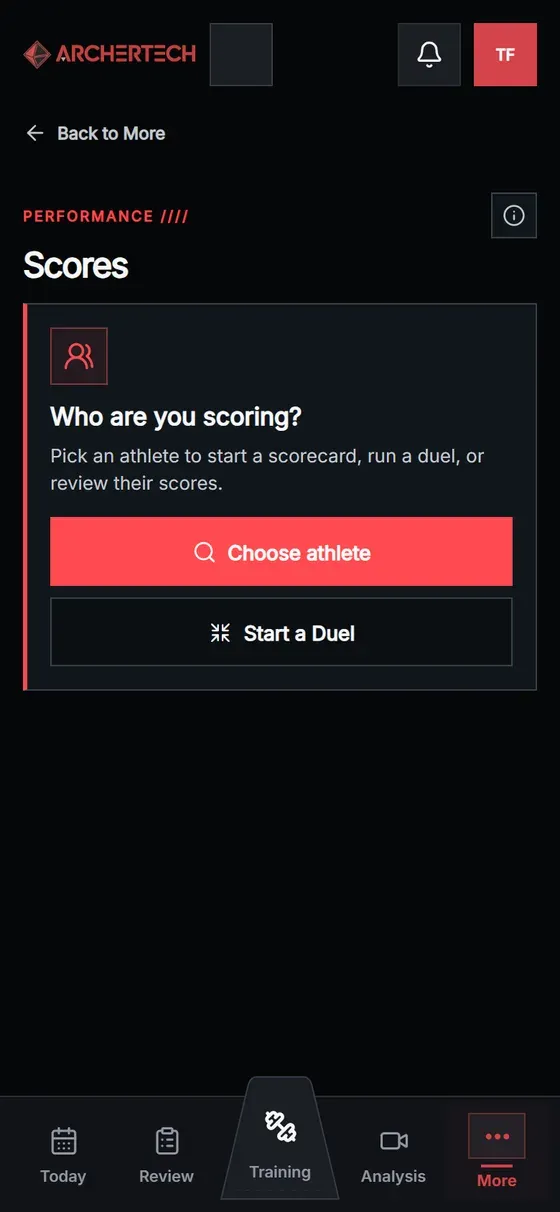
Score for an athlete
- Tap Choose athlete and pick who you are scoring.
- Tap Scoring and set up the round: mode, distance, target, arrows per end and ends. Group opens Target Group Scoring.
- Enter the arrows on the target or keypad, confirming each end.
- Tap Review scorecard, then Save scorecard, or Save & verify to mark it reviewed in the same step.
Verify a scorecard
- Open a scorecard and go to the Coach tab.
- Add a coach note, then tap Verify score or Needs follow-up.
Follow an athlete
- Overview shows the athlete’s latest round and performance trend.
- Scorecards lists their rounds by month, with search and filters.
- Season goal sets the athlete’s season target.
Edit or delete a scorecard
- Open the scorecard and tap ⋮.
- Choose Edit scorecard (needs a connection) or Delete scorecard.
- Tap Tap again to delete to confirm. A deleted scorecard can’t be restored.
Your athletes’ scorecards: rounds, coach verification and trends.
On this screen
- Choose athletePicks whose scorecards you see and score; their name and code show here.
- Overview and ScorecardsTwo tabs switch between the athlete’s summary and their list of rounds.
- Recent form and trendThe athlete’s average and best score, then a trend chart of their rounds.
- Season goalSets the athlete’s season target and shows how many points remain.
- Scoring and DuelCoaches get a bottom bar to start Scoring or open Duel.
Follow an athlete
- Overview shows the athlete’s latest round and performance trend.
- Scorecards lists their rounds by month, with search and filters.
- Season goal sets the athlete’s season target.
What a manager can’t do here
- Managers can view scorecards and set the season goal, but can’t record, edit, delete, publish or verify scores.