
Planning
The annual plan: weeks, phases, load and events
The annual plan: season weeks, phases, load and events, kept as drafts until you publish them.
On this screen
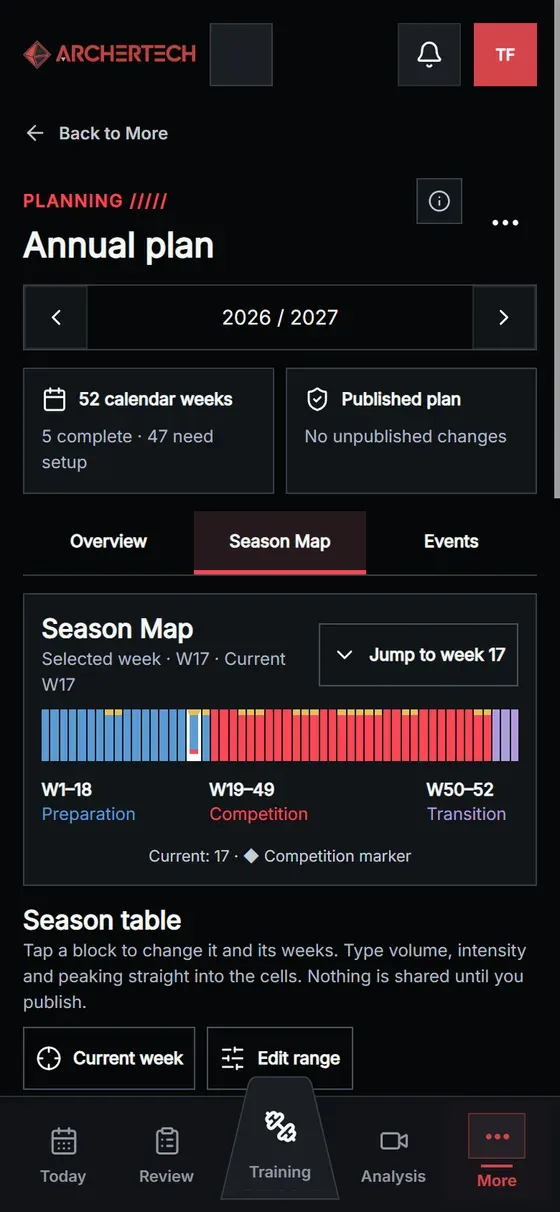
- Annual planThe PLANNING heading, with the season switcher and a Planning tools menu.
- Plan statusCalendar weeks complete or needing setup, and unpublished weeks with Review changes.
- Planning tabsOverview, Season Map and Events switch between the summary, the weeks and competitions.
- Season mapA strip of season weeks coloured by phase, with competition markers; tap a week to edit.
- Planning toolsThe Planning tools menu holds Copy season, Season settings, Athlete plans and Plan vs actual.
Start a season
- Tap Create season.
- In Season settings, set the season weeks (8 to 64), the weekly arrow max and the max weekly load, then tap Save settings.
Plan a week
- In Season Map, tap a week, then Edit week N.
- Set the phase, objective, focus areas, and volume, intensity and peaking.
- Tap Save draft. Only you see the draft until it is published.
- To change several weeks at once, use Edit range.
Publish your changes
- Tap Review changes.
- Tick the weeks and tap Publish selected. Training sessions already published stay as they are.
More planning tools
- Events: the season’s competitions; once their weeks are published they link to Selection Tables.
- Copy season: start from a published season, with or without its competitions.
- Athlete plans: a personal weekly target for one athlete.
- Plan vs actual: arrows, minutes and check-ins against the plan.
The annual plan: season weeks, phases, load and events, kept as drafts until you publish them.
On this screen
- Annual planThe PLANNING heading, with the season switcher and a Planning tools menu.
- Plan statusCalendar weeks complete or needing setup, and unpublished weeks with Review changes.
- Planning tabsOverview, Season Map and Events switch between the summary, the weeks and competitions.
- Season mapA strip of season weeks coloured by phase, with competition markers; tap a week to edit.
- Planning toolsThe Planning tools menu holds Copy season, Season settings, Athlete plans and Plan vs actual.
More planning tools
- Events: the season’s competitions; once their weeks are published they link to Selection Tables.
- Copy season: start from a published season, with or without its competitions.
- Athlete plans: a personal weekly target for one athlete.
- Plan vs actual: arrows, minutes and check-ins against the plan.
What a manager can’t do here
- Managers see every plan read-only.