
Messages
Chat with your coaching team
Talk to your coaching team and read club announcements.
On this screen
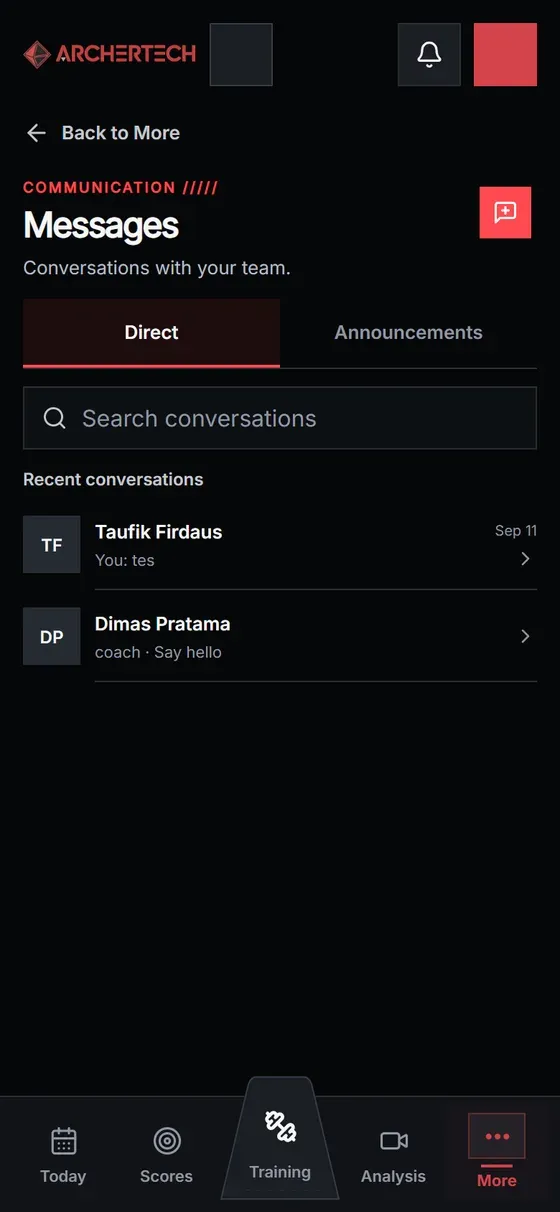
- Messages headerMessages heads the page, with a New message button to pick a contact.
- Direct and announcementsDirect holds your chats; Announcements holds club updates you can only read.
- Search and filterSearch conversations finds a chat; Unread narrows the list when something is waiting.
- ConversationsRecent conversations shows each chat with its last message, date and a red unread count.
- Club announcementsClub announcements lists updates from the club with sender and date.
Message your coach
- Tap New message and choose a contact.
- Write your message and send it.
- Tap … on a message to reply or to delete one of yours. Copying works in the web app.
Good to know
- Announcements holds team broadcasts. They are read-only.
- A message that fails shows Not sent with Retry.
- You can message coaching staff, not other athletes.
Direct chats with athletes and staff, plus announcements to the whole workspace.
On this screen
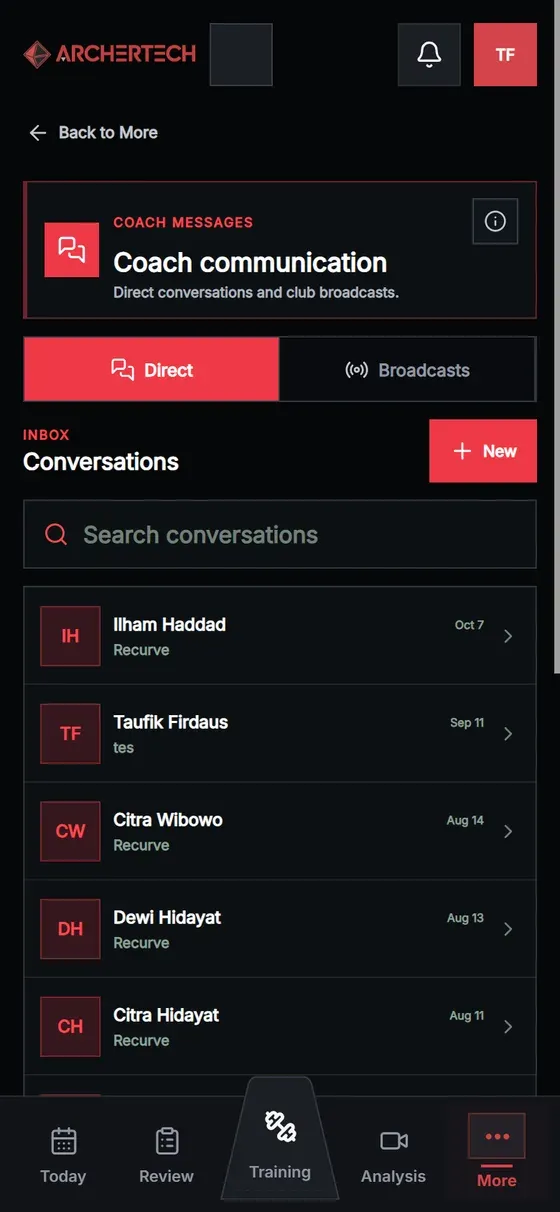
- Coach messagesCOACH MESSAGES introduces your chats and broadcasts, with a notice when messages are unread.
- Direct and broadcastsSwitch between Direct chats and Broadcasts to the whole workspace.
- ConversationsINBOX lists Conversations with the last message and unread count; New starts a chat.
- Announcement composerTeam announcements shows the audience and a text box; use Preview, then Send to workspace.
- Recent updatesANNOUNCEMENTS lists the Recent updates already sent to the workspace.
Start a conversation
- In Direct, tap New.
- Search, or filter by Coaches or Athletes, and tap a contact.
- Write a message and send it. Sent messages show Sent or Read.
Send an announcement
- Open Broadcasts and write your announcement (up to 1000 characters).
- Tap Preview, then Send to workspace. It goes to every workspace member.
Good to know
- Tap … on a message to reply or delete it. Copying works in the web app.
- Coaches and head coaches can delete any message; managers can delete only their own.
- Athletes appear as contacts once their login is linked.
Direct chats with athletes and staff, plus announcements to the whole workspace.
On this screen
- Coach messagesCOACH MESSAGES introduces your chats and broadcasts, with a notice when messages are unread.
- Direct and broadcastsSwitch between Direct chats and Broadcasts to the whole workspace.
- ConversationsINBOX lists Conversations with the last message and unread count; New starts a chat.
- Announcement composerTeam announcements shows the audience and a text box; use Preview, then Send to workspace.
- Recent updatesANNOUNCEMENTS lists the Recent updates already sent to the workspace.
Start a conversation
- In Direct, tap New.
- Search, or filter by Coaches or Athletes, and tap a contact.
- Write a message and send it. Sent messages show Sent or Read.
Send an announcement
- Open Broadcasts and write your announcement (up to 1000 characters).
- Tap Preview, then Send to workspace. It goes to every workspace member.
Good to know
- Tap … on a message to reply or delete it. Copying works in the web app.
- Coaches and head coaches can delete any message; managers can delete only their own.
- Athletes appear as contacts once their login is linked.