
Coach Tasks
Coaching to-dos with due dates and owners
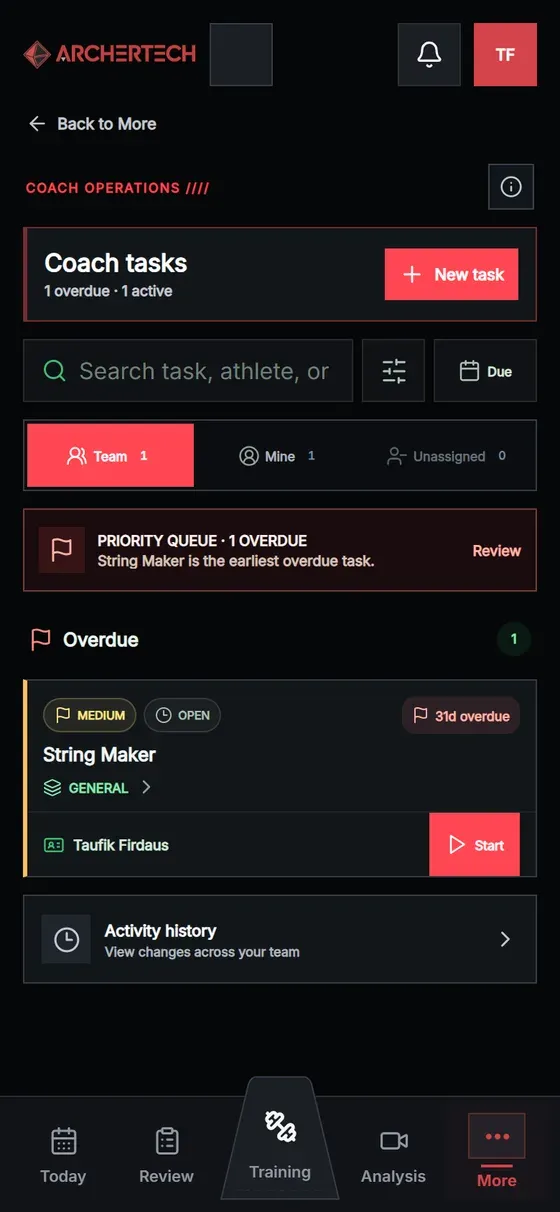
Coaching to-dos with due dates, owners and the athlete they concern.
On this screen
- Coach tasksShows how many tasks are active or overdue, with a New task button.
- Search and sortSearch tasks, open the filters, and sort the list by Due or Priority.
- Task scopeTeam, Mine and Unassigned switch whose tasks you see, each with a count.
- Priority queueWhen tasks are overdue, a banner names the earliest one; tap it to review them.
- Task listTasks are grouped as Overdue, Due today and Upcoming, each with Start, Complete or Reopen.
Create a task
- Tap New task.
- Add a title and description, choose a category and priority, and set a due date and the related athlete.
- Choose who it is assigned to and tap Create task.
Work the list
- Team, Mine and Unassigned switch the scope; tasks are grouped into Overdue, Due today and Upcoming.
- Tap a task’s status button to Start, Complete or Reopen it.
- Assign me takes an unassigned task.
- Deleting takes two taps: Delete, then Tap again.
Coaching to-dos with due dates, owners and the athlete they concern.
On this screen
- Coach tasksShows how many tasks are active or overdue, with a New task button.
- Search and sortSearch tasks, open the filters, and sort the list by Due or Priority.
- Task scopeTeam, Mine and Unassigned switch whose tasks you see, each with a count.
- Priority queueWhen tasks are overdue, a banner names the earliest one; tap it to review them.
- Task listTasks are grouped as Overdue, Due today and Upcoming, each with Start, Complete or Reopen.
Create a task
- Tap New task.
- Add a title and description, choose a category and priority, and set a due date and the related athlete.
- Choose who it is assigned to and tap Create task.
Work the list
- Team, Mine and Unassigned switch the scope; tasks are grouped into Overdue, Due today and Upcoming.
- Tap a task’s status button to Start, Complete or Reopen it.
- Assign me takes an unassigned task.
- Deleting takes two taps: Delete, then Tap again.